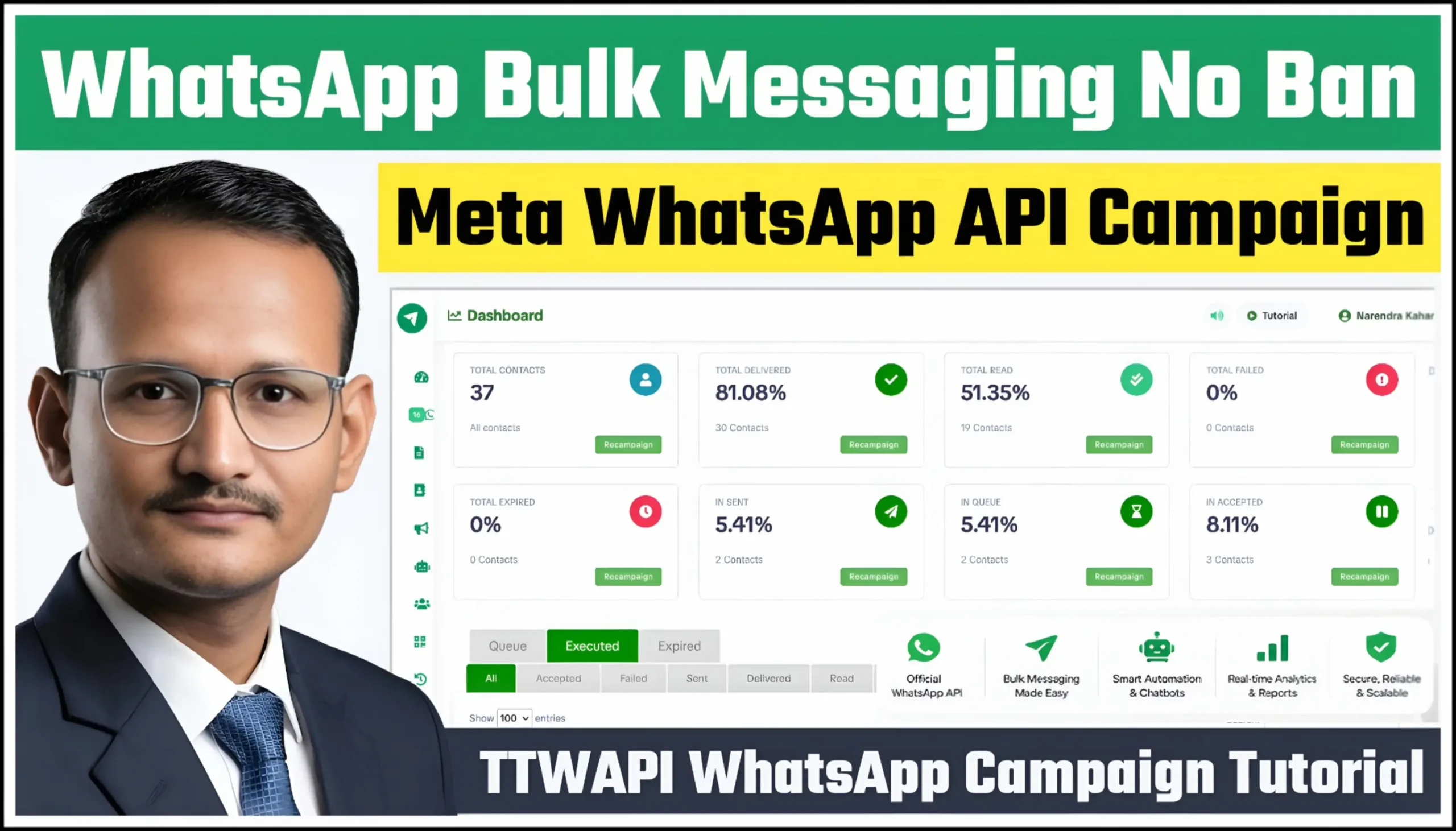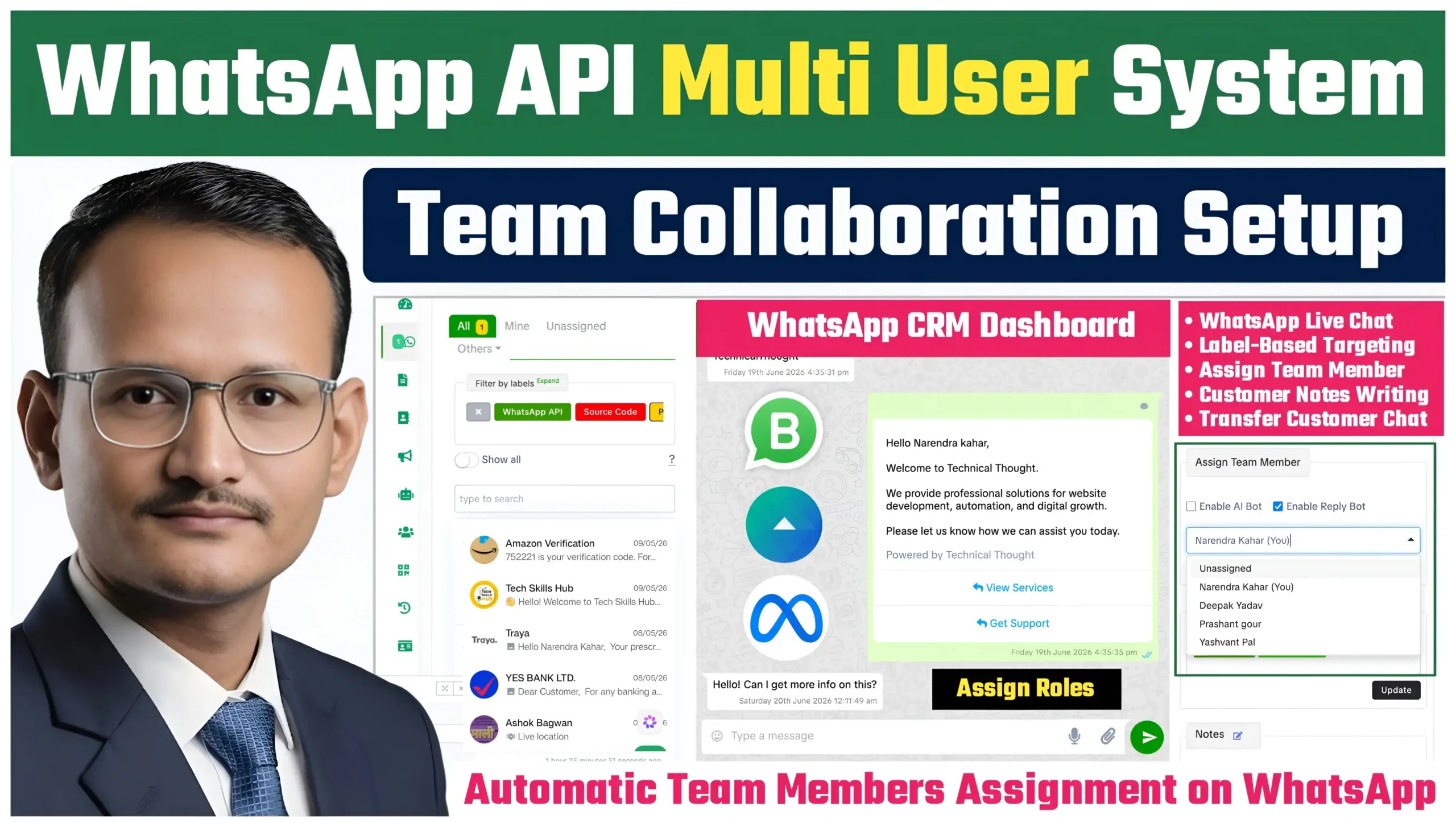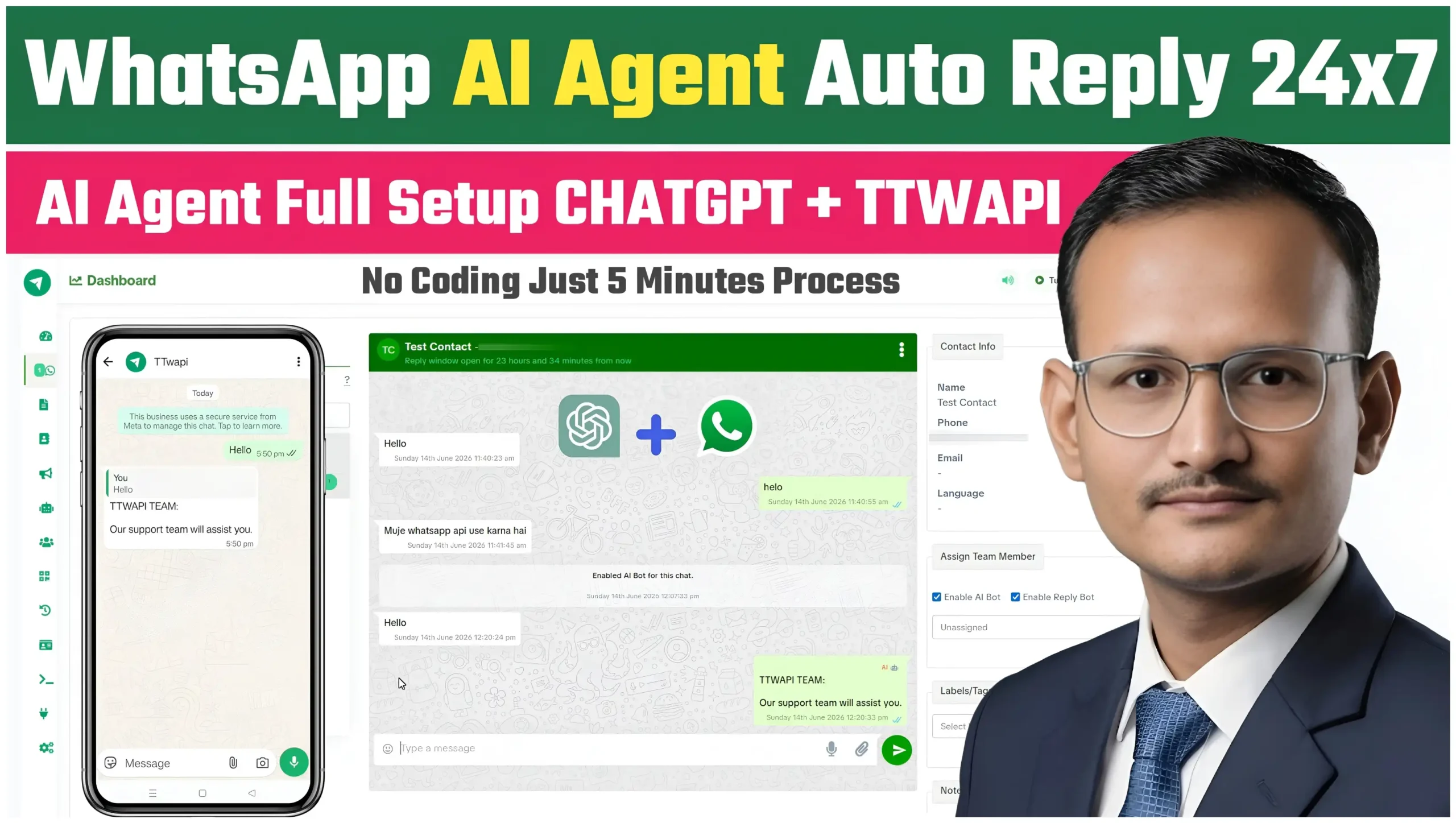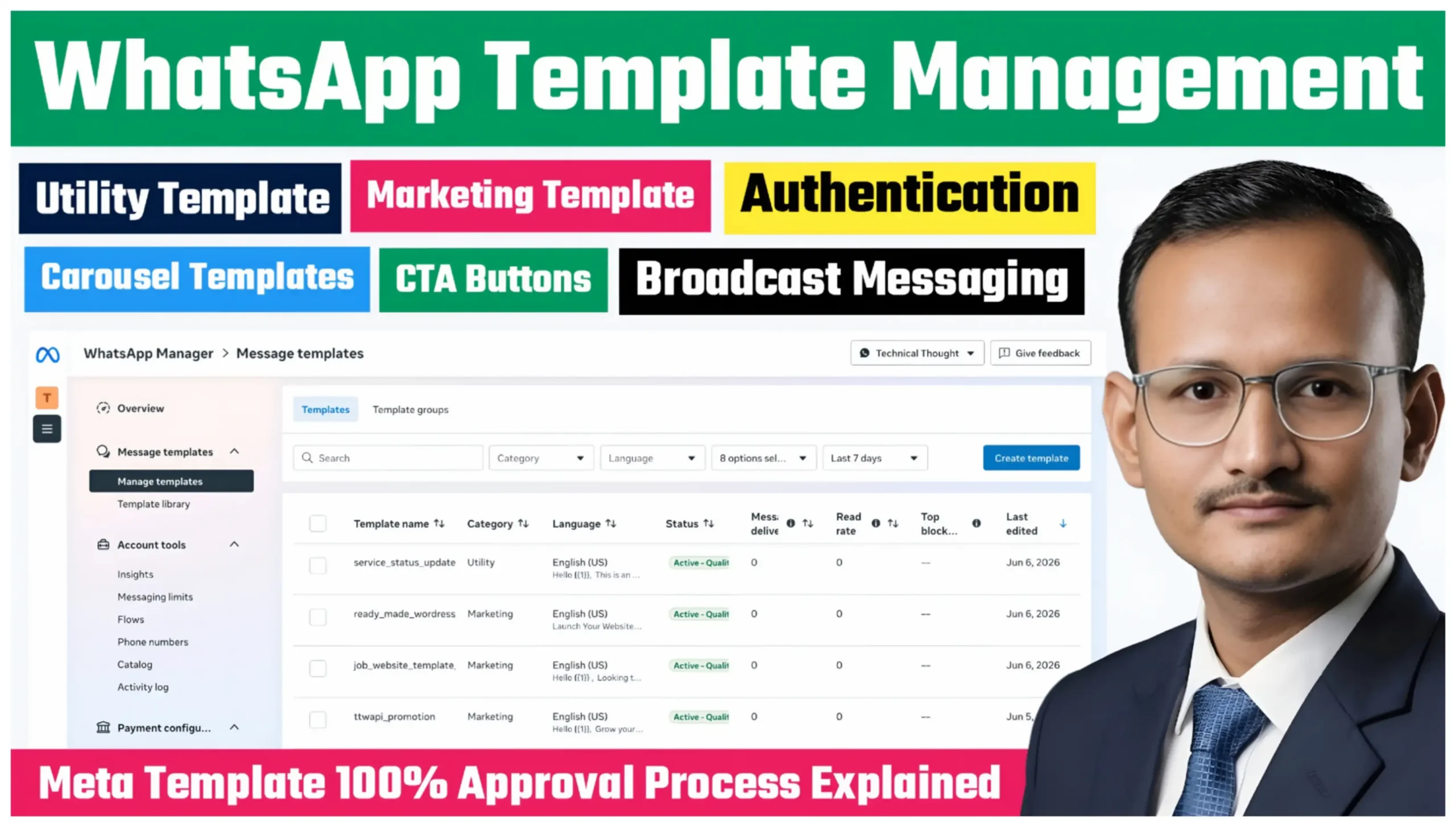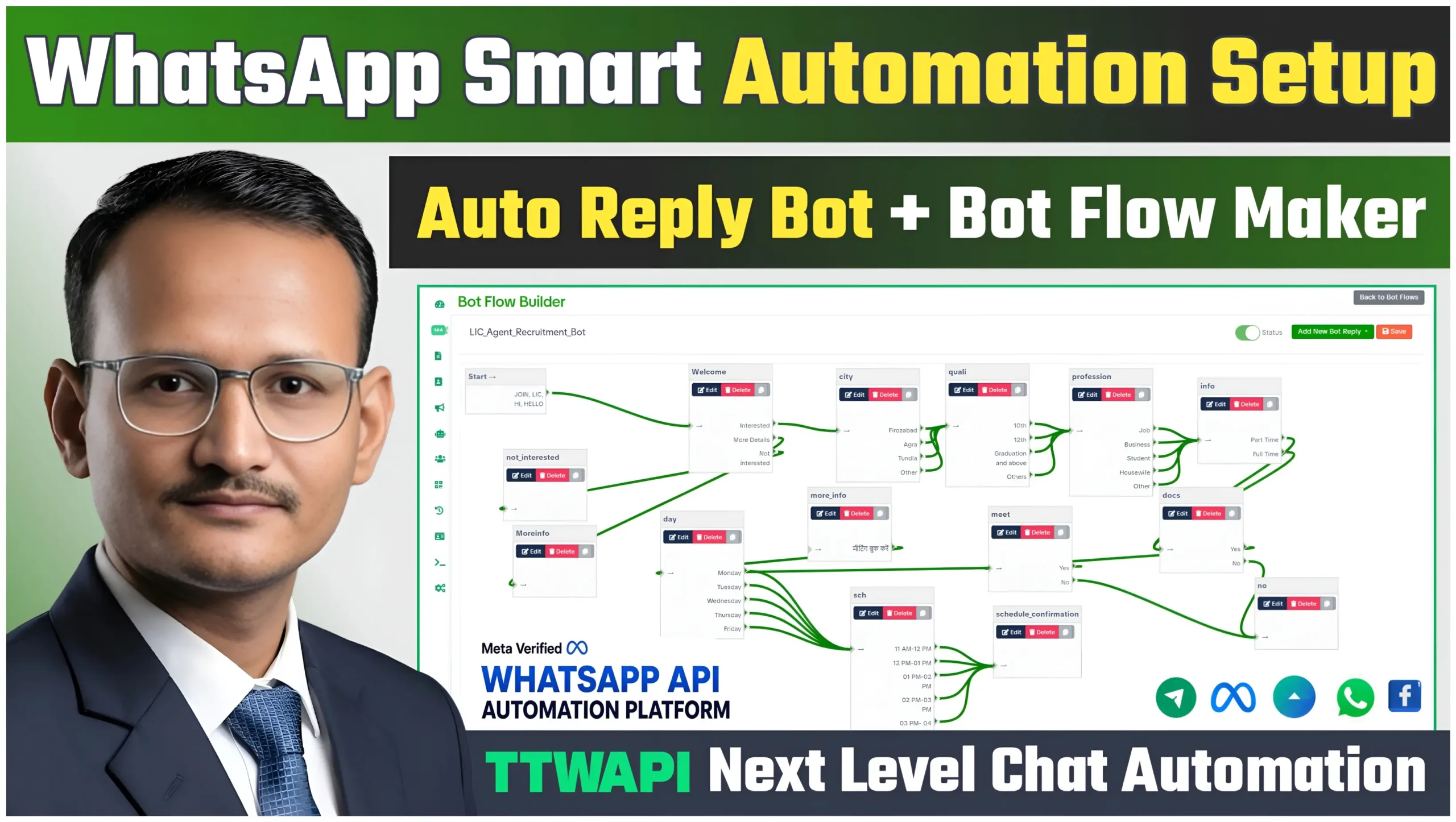
Setting up the WhatsApp API Setup is required before you can start sending messages, creating automation flows, using chatbots, or running campaigns inside TTWAPI.
This guide will help you connect your Meta (Facebook) Developer App with TTWAPI step-by-step.
Watch TTWAPI WhatsApp API Setup Video
Watch Video : WhatsApp API Connect in TTWAPI | App ID, App Secret & WABA ID | Permanent Access Token API
Why WhatsApp API Setup Is Important
Without completing WhatsApp API Setup:
- WhatsApp messaging will not work
- Bot replies will remain inactive
- Campaigns cannot be sent
- Template messaging will fail
- Webhooks will not receive messages
- Contact automation will stop working
Once WhatsApp API Setup configured correctly, TTWAPI will be able to send and receive WhatsApp messages securely through the official WhatsApp Cloud API.
Requirements Before Setup
Before starting, make sure you have:
- A Facebook account
- A Meta Business Manager account
- A WhatsApp Business Account (WABA)
- A phone number not already connected to WhatsApp Business API
- Access to Meta Developer Portal
Step 1 — Create a Facebook Developer App
Open the Meta Developer portal and create a new app.
Important:
While creating the app:
- Select Business as the app type
- Add the WhatsApp Product
- Complete basic business verification if required
After creating the app:
- Copy your Facebook App ID
- Copy your Facebook App Secret
These details are required inside TTWAPI.
Step 2 — Open TTWAPI Settings
Inside your dashboard:
- Go to Settings
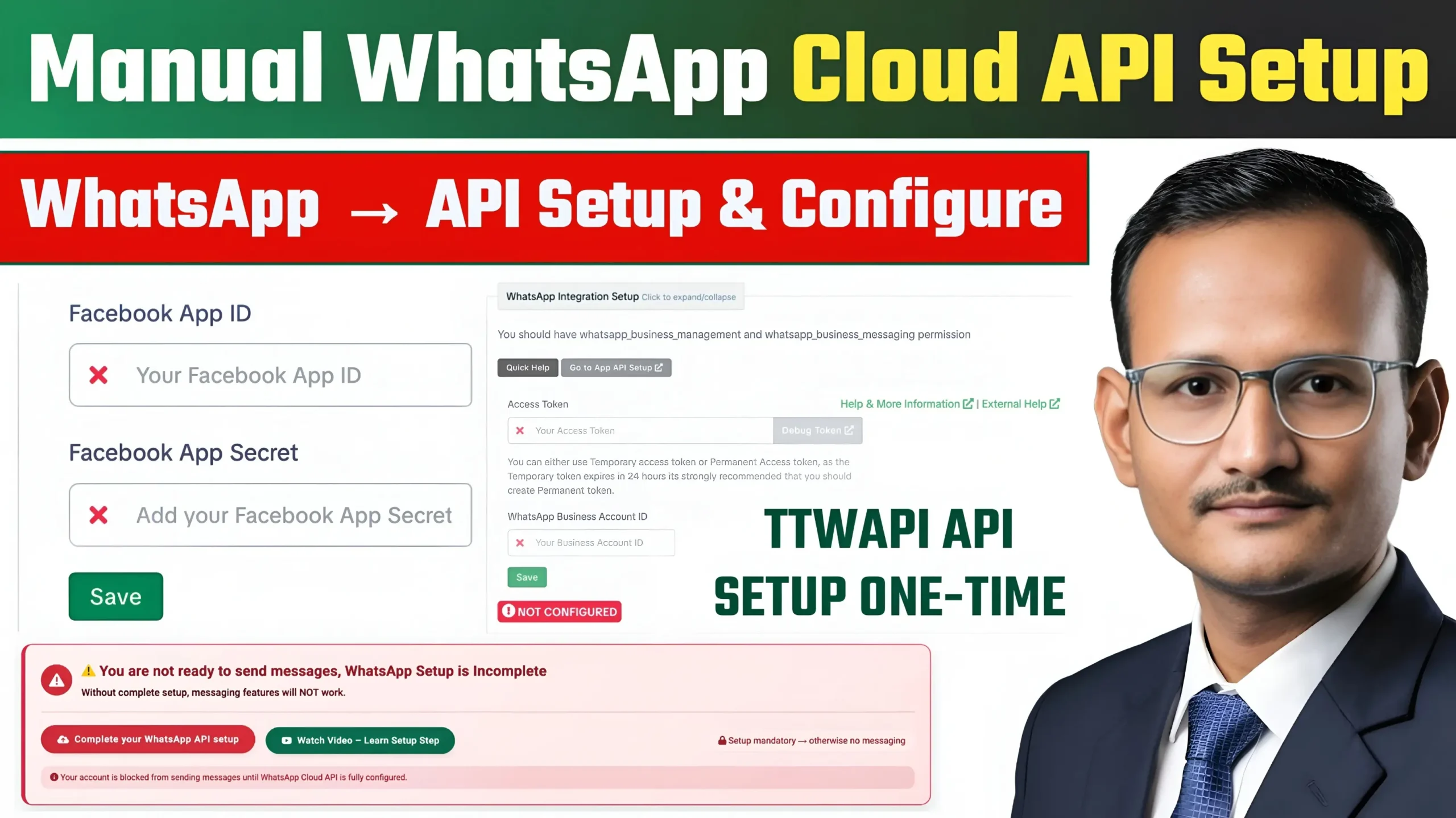
- Open WhatsApp Cloud API Setup
You will see:
- Facebook App ID
- Facebook App Secret
- Access Token
- WhatsApp Business Account ID
Step 3 — Add Facebook App Details
Inside the first setup section:
Enter:
- Facebook App ID
- Facebook App Secret
Click:
Save
After saving:
- TTWAPI automatically creates webhook configuration
- Webhook endpoints become ready
- API connection initialization starts
If setup is successful, webhook status will update automatically.
Step 4 — Configure WhatsApp Integration
Now move to:
WhatsApp Integration Setup
You must generate:
- Permanent Access Token
- WhatsApp Business Account ID
Step 5 — Generate Access Token
Inside Meta Developer Dashboard:
Open:
- API Setup
Then:
- Generate Access Token
- Copy the token
Important:
Temporary tokens expire after 24 hours.
It is strongly recommended to create:
Permanent Access Token
Permanent tokens are more secure and stable for production use.
Step 6 — Add WhatsApp Business Account ID
Inside Meta:
Copy:
WhatsApp Business Account ID
Paste it into TTWAPI settings.
Then click:
Save
Step 7 — Refresh Business Information
After saving all details:
Click:
Refresh Phone Numbers & Business Information
TTWAPI will now:
- Fetch connected phone numbers
- Sync business information
- Verify WhatsApp account connection
- Update account health status
Step 8 — Verify Configuration Status
If everything is configured correctly:
You should no longer see:
- NOT CONFIGURED
- WEBHOOK NOT CONFIGURED
Your dashboard warning message will disappear automatically.
Step 9 — Test Your WhatsApp API
Once setup is complete you can:
- Send test messages
- Create campaigns
- Build chatbot flows
- Use API integrations
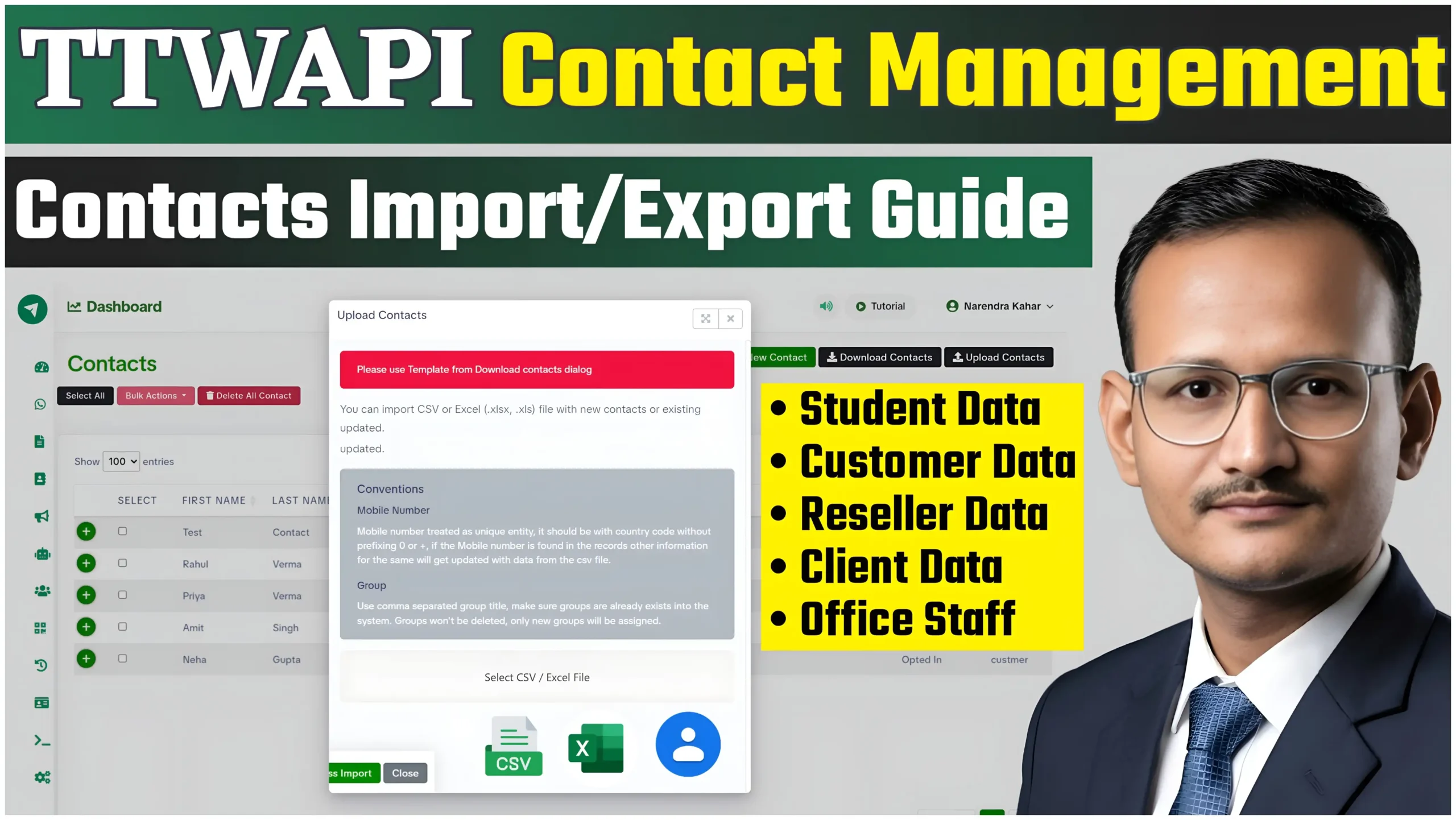
- Import contacts
- Configure automation
Common Errors & Solutions
Invalid Access Token
Cause:
- Expired token
- Wrong token copied
Solution:
- Generate new permanent token
Webhook Not Configured
Cause:
- Incorrect App Secret
- Meta callback verification failed
Solution:
- Re-save App ID and App Secret
- Refresh webhook configuration
Phone Number Not Showing
Cause:
- Number not connected to WhatsApp Business API
Solution:
- Add phone number inside Meta WhatsApp Manager
Messaging Disabled
Cause:
- Incomplete setup
Solution:
- Complete all required setup fields
- Refresh business information
Security Recommendations
For maximum security:
- Never share App Secret publicly
- Use Permanent Tokens only
- Enable Meta Two-Factor Authentication
- Restrict admin access
- Regularly refresh permissions
What You Can Do After Setup
After successful configuration, TTWAPI enables:
- Bulk WhatsApp Messaging
- AI Chatbot Automation
- Auto Replies
- Campaign Management
- Contact Segmentation
- REST API Integration
- Drag & Drop Flow Builder
- Team Collaboration
- WhatsApp Template Messaging
Final Notes
Completing the WhatsApp API setup is mandatory for sending and receiving messages through TTWAPI.
A properly configured API connection ensures:
- Stable messaging
- Faster delivery
- Secure communication
- Reliable automation
- Official Meta integration
If you face any issues during setup, use the tutorial button or contact support directly from your dashboard.